

How to Set Up a Bill of Material (BOM) in Luminous

.svg)
- Step 1: Navigate to the Bills of Materials
- Step 2: Create a New Bill of Material
- Step 3: Assign the BOM to a Product
- Additional Features
- Key Takeaways
- Tips for Accurate BOMs
- Common Questions
A Bill of Material (BOM) in Luminous acts as a "recipe" for compiling raw goods or components into a finished product ready for sale. This guide provides step-by-step instructions to create and assign a BOM to a product.
Step 1: Navigate to the Bills of Materials
- Access Inventory Admin:
- From the Luminous dashboard, click Inventory Admin under the Inventory menu.
- Open Bills of Materials:
- Select Bills of Materials to view existing BOMs or create a new one.
Step 2: Create a New Bill of Material
- Start Creating a BOM:
- Click Create Bill of Materials in the top-right corner.
- Name the BOM:
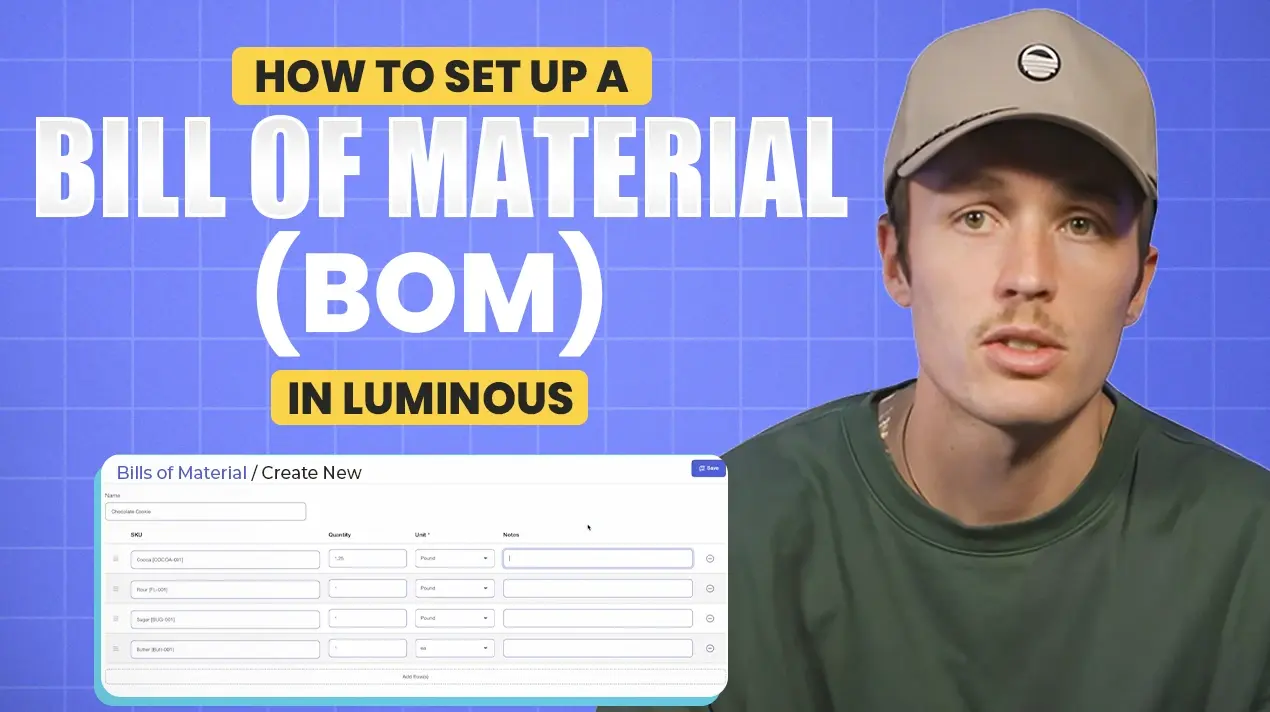
- Enter a name for the BOM. It is recommended to use the name or SKU of the finished product (e.g., Chocolate Cookie).
- Add Components:
- Add the raw goods or components required to create the finished product. For example:
- Cocoa
- Flour
- Sugar
- Butter
- Add the raw goods or components required to create the finished product. For example:
- Customize Details:
- Adjust quantities, units of measure (e.g., grams, kilograms), or add decimals as needed.
- Include specific notes or instructions for each component, if applicable.
- Save the BOM:
- Click Save to finalize the Bill of Material.
Step 3: Assign the BOM to a Product
- Navigate to SKUs:
- Go to the SKUs section in Luminous.
- Select the Product:
- Locate the finished product to which you want to assign the BOM (e.g., Chocolate Chip Protein Bar).
- Assign the BOM:
- In the product details, assign the newly created BOM (e.g., Chocolate Cookie).
- Click Done to save the changes.
Additional Features
- Multiple BOMs per Product:
- You can assign multiple BOMs to a single product. This is particularly useful if there are different ways to produce the same finished good, offering greater flexibility in production workflows.
Key Takeaways
- A BOM is the recipe for a finished product: the components or raw goods, and how much of each, that go into making it.
- BOMs live under Inventory > Inventory Admin > Bills of Materials.
- Name each BOM after the finished product or its SKU so it's easy to find later.
- Each component line supports decimal quantities, different units of measure and notes.
- Once saved, assign the BOM to the finished-goods SKU. A product can have more than one BOM if there's more than one way to make it.
Tips for Accurate BOMs
- Set up components first. Each component needs to exist as a part or SKU in Luminous before you can add it to a BOM.
- Use the right unit of measure. If you buy flour by the bag but use it by the pound, make sure the BOM quantity matches how the component is tracked.
- Include everything that's consumed. Packaging, labels and inserts are often forgotten, but leaving them out understates your true product cost.
- Use notes for instructions. Short notes on a component line help your production team follow the recipe the same way every time.
- Review BOMs when recipes change. A new supplier or formula should mean an updated or additional BOM.
Common Questions
Why would a product need more than one BOM? If you can make the same finished good in different ways, such as with an alternate ingredient or supplier, multiple BOMs let you choose the right recipe for each production run.
What do I do after setting up a BOM? Use it to build finished goods with an assembly order. See How to Complete an Assembly Order in Luminous.
Related videos: How to Add Parts in Preparation of Setting Up Your BOM, How to Attach a BOM to a Finished Goods SKU and How Cost Layers Work When Completing an Assembly Order.
By following these steps, you can efficiently set up and manage Bills of Materials in Luminous, ensuring smooth production processes for your finished goods.
Video transcript
What a bill of material is
Hey there. In this video, we're going to talk a little more about setting up a bill of material. A bill of material is basically a recipe: instructions someone follows to combine a bunch of components or raw goods to produce a finished product that will most likely be sold.
Open Bills of Materials
Within Luminous, you do this underneath Inventory. Go to Inventory, then Inventory Admin, and click Bills of Materials. We can see all of our existing bills of materials here.
Create and name a BOM
To create a new one, click Create Bill of Materials. We can give it a name. Typically, I like to give it the name of the finished product or the finished product SKU. So we might call this one Chocolate Cookie, for example.
Add components
Now we can add the different components that go into producing a chocolate cookie. We'll add a couple of different things: cocoa, maybe some flour, maybe some sugar, and maybe some butter as well.
We can remove line items. We can also change the quantity if it's in decimals, or include a different unit of measure. We can also include notes if there are specific instructions for any of these components. Then I'll save it.
Assign the BOM to a SKU
Now I can take that Chocolate Cookie BOM, go to SKUs, and assign it to a specific product. We should have a chocolate cookie already created, but we'll use this chocolate chip protein bar right here. I'll click into it, and you'll see I can assign the bill of material we just created, Chocolate Cookie, right here. Then click Done.
Multiple BOMs for one product
You'll also see that you can have multiple bills of materials for the same product. This is extremely useful if there are multiple ways to produce a finished good, and it gives you a little more flexibility inside the system. And that's about it. Thanks.