

How to Use Purgatory in Luminous
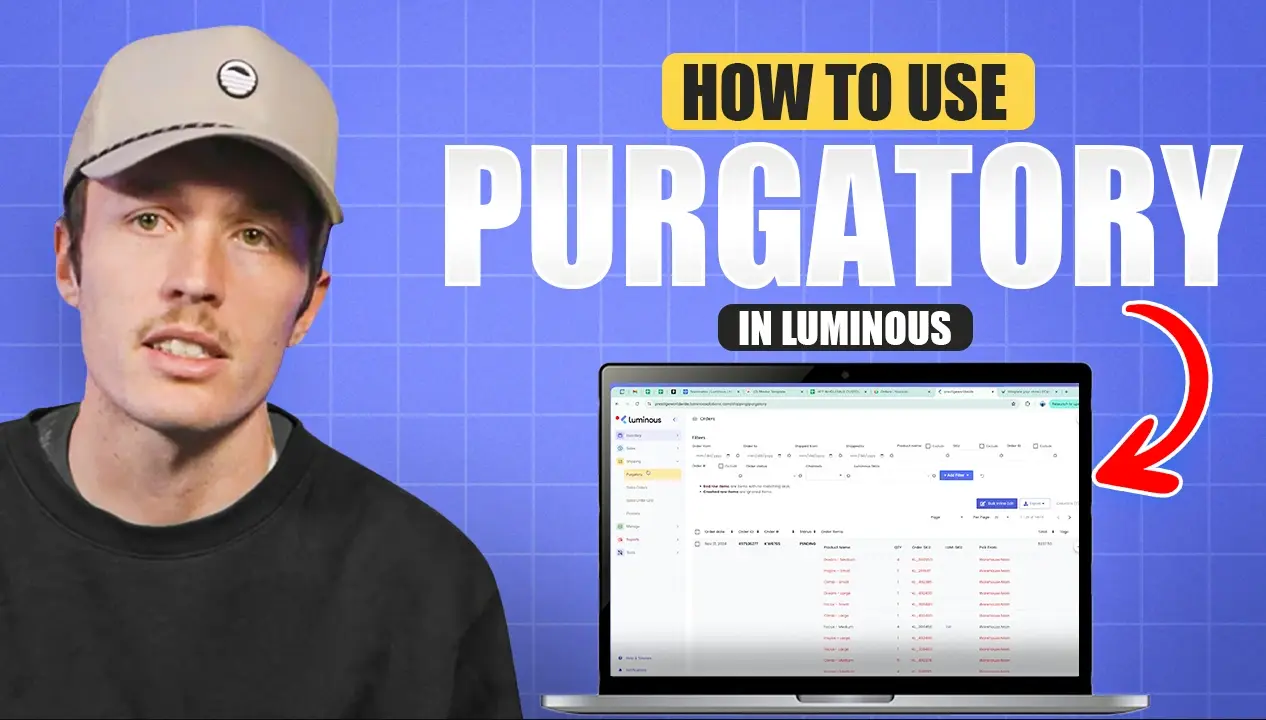


- Step 1: Understanding Purgatory
- Step 2: Accessing Purgatory
- Step 3: Actions to Fix Issues in Purgatory
- Step 4: Cleaning Purgatory
- Step 5: Alternate Workflow (Optional)
- Benefits of Purgatory
- Related Videos
Purgatory is a data cleaning tool in Luminous designed to ensure accurate sales mapping and inventory deductions. This guide provides a step-by-step walkthrough on managing and resolving SKUs in Purgatory effectively.
Step 1: Understanding Purgatory
Purgatory holds sales orders that are not properly mapped to products in Luminous. This occurs when:
- SKUs are unrecognized (not a master SKU or alternate SKU).
- SKUs don’t exist in Luminous.
Without resolving these issues, inventory will not be deducted accurately, and reporting will be incomplete.
Step 2: Accessing Purgatory
- Go to the Shipping tab in Luminous.
- Select Purgatory to view stuck orders.
- Identify SKUs marked in red (unrecognized or unlinked SKUs).
Step 3: Actions to Fix Issues in Purgatory
For SKUs in Purgatory, you can:
1. Create a New SKU
- Copy the unrecognized SKU from Purgatory.
- Create the SKU as a new product in Luminous.
2. Add as an Alternate SKU
- If the SKU exists in another form, add it as an alternate SKU to the corresponding product.
3. Ignore the SKU
- If the SKU is irrelevant, click the three dots (⋮) on the Purgatory page.
- Select Settings to ignore patterns or specific SKUs.
Step 4: Cleaning Purgatory
- Bulk Inline Edit:
- Click Bulk Inline Edit to load a detailed view of order SKUs.
- Take one of the following actions for each SKU:
- Create New SKU: Fill out the required details and save the new SKU.
- Add as Alternate SKU: Map it to an existing product.
- Confirm Orders:
- Review the sales orders.
- Choose whether to:
- Deduct inventory numbers.
- Include or exclude orders from sales reports.
- Confirm the orders once resolved.
- Reprocess Orders:
- Exit the inline edit view.
- Click the three dots (⋮) and select Automap SKUs and Reprocess Orders.
- This will clear resolved orders from Purgatory.
Step 5: Alternate Workflow (Optional)
You can use two tabs in Luminous for efficient workflow:
- One tab for Purgatory to review stuck orders.
- Another tab for SKUs to create or map SKUs as needed.
After updating the SKUs, return to Purgatory and resync the orders.
Benefits of Purgatory
- Ensures all sales data from channels is accurately mapped in Luminous.
- Keeps inventory deductions and reporting precise.
- Improves data consistency across your system.
Related Videos
Get an email when orders get stuck with How to Use Automations to Enhance Your Fulfillment Flow, and go deeper on mapping with How to Clean Up Purgatory and Use Data Mapping.
By regularly reviewing and cleaning Purgatory, you can maintain accurate inventory and sales records in Luminous.
Video transcript
What purgatory is
Hey there. This is going to be a quick walkthrough on Purgatory: what it is, what it does and how it's useful. Purgatory is a data cleaning tool. Luminous is taking in all of your different sales orders, and it's imperative that those sales orders are mapped to specific products in Luminous, so sales are updated and inventory is deducted properly.
Without purgatory, you may run the risk of having SKUs that aren't mapped to anything in the system, and inventory not deducting properly. So it's very critical to go over this and clean up purgatory.
Find orders in purgatory
Underneath Shipping, I can go to Purgatory, and you'll see all the orders getting stuck there. All the items marked in red are SKUs that don't exist in Luminous. They're not an alternate SKU or a master SKU; they aren't present, and Luminous doesn't recognize them.
Three ways to fix a SKU
There are a couple of actions we can take to fix these issues:
- Create a new product: copy the SKU here and create it as a new product in Luminous.
- Add an alternate SKU: maybe the product already exists, so we can add this as an alternate SKU. I'll show both in a moment.
- Ignore it: maybe it's something that should be ignored entirely. In that case, click the three dots, click Settings, and you can ignore patterns, or ignore anything that contains that specific SKU.
Clean up with Bulk Inline Edit
Now let's go through what it looks like to clean purgatory. I'll click Bulk Inline Edit and let that load for a moment. This view lets me add these order SKUs as alternates, or create new SKUs for them in the system.
Let's look at this order in particular. For this order SKU, we just need to create a SKU for it, so I'll fill out the info and create the new SKU. This next SKU lines up with an existing product, so I can add it as an alternate SKU. Same thing for this product, and this last one, too.
Confirm the mapped orders
Now I can confirm those mapped sales orders from here. You can choose Don't Update Inventory Numbers if it's something you don't want to deduct inventory from, and you can also check the option to exclude it from sales reports. In this case, I want it to deduct inventory and be part of the sales report, so I'll confirm this order.
Automap SKUs and reprocess orders
Now that's been confirmed: those SKUs have been created and the alternate SKUs have been added. I can exit that view, click the three dots, and click Automap SKUs and Reprocess Orders, which starts clearing out all the order SKUs that were getting caught in purgatory.
The two-tab workflow
Another way clients use this is to keep two tabs of Luminous open: one with Purgatory, and another on the SKUs page, where they create SKUs or add alternates, and then re-sync the orders.
All in all, purgatory is a data cleaning tool that verifies that everything Luminous gets from your sales channels exists in the system. It keeps inventory and reporting accurate. Thanks.