

How to Use the Stocks Grid in Luminous


- Step 1. Access the Stocks Grid
- Step 2. Understand Key Stock Statuses
- Step 3. Filter Your View
- Step 4. Customize Columns
- Step 5. Export Data
- Step 6. Bulk Select and Create Orders
- Step 7. Use Actions Menu
- Step 8. Analyze and Plan Inventory Decisions
- Example: A Weekly Reorder Check
- Common Questions
The Stocks Grid in Luminous is a powerful tool for monitoring inventory, managing stock levels, and creating purchase or transfer orders. This guide will walk you through how to use its features step by step.
Step 1. Access the Stocks Grid
- Navigate to the Inventory section in Luminous.
- Select Stocks Grid from the menu on the left.
Step 2. Understand Key Stock Statuses
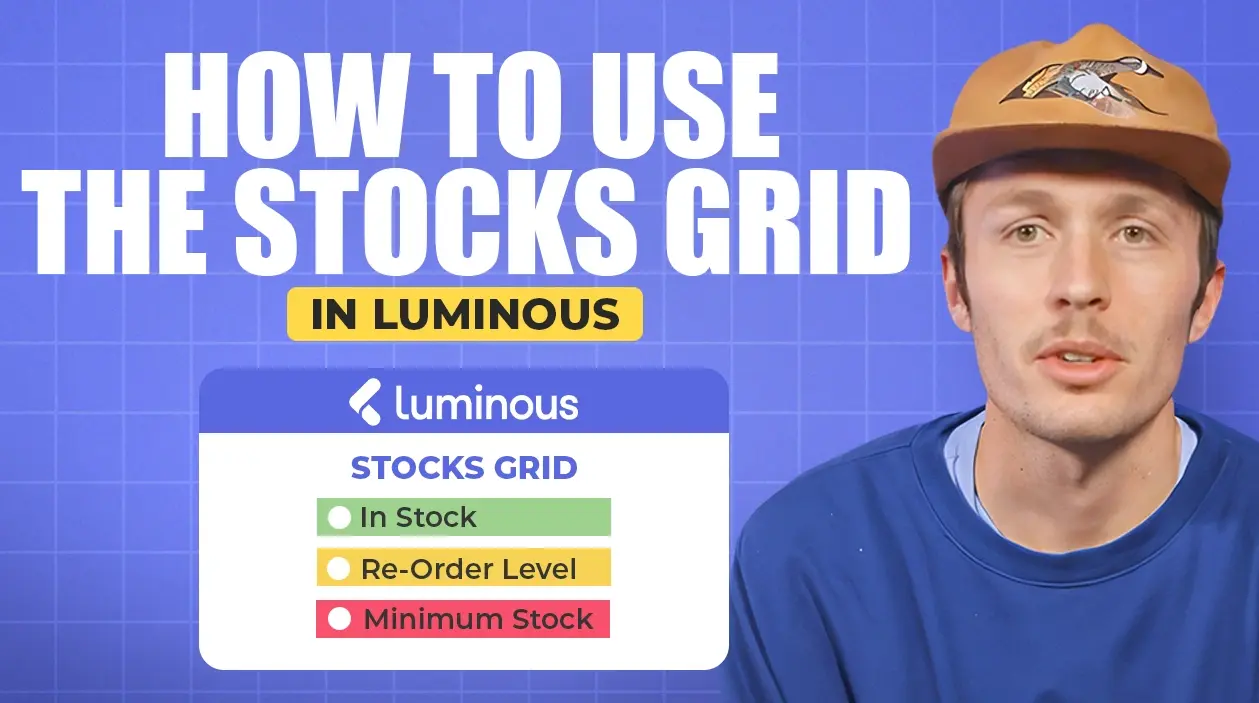
The Stocks Grid highlights three key stock statuses:
- In Stock Status: Reflects current inventory levels.
- Reorder Level: Shows when stock falls below the low stock alert quantity.
- Example: If a SKU's stock drops below its low stock alert quantity, it shows the Reorder Level status, so you know it's time to plan a reorder.
- Minimum Stock: Indicates when stock is critically low, falling below the minimum stock level.
Step 3. Filter Your View
- Use filters to customize your grid view based on your needs:
- Filter by Product: Search for specific products.
- Filter by Warehouse Group: Narrow results to a particular location or group.
- Filter by Supplier or Category: View stock based on preferred suppliers or product categories.
- Save Filters:
- Apply your filters, then save them for quick access in the future.
- Rename or delete saved filters as needed.
Step 4. Customize Columns
- Adjust columns in the grid to display relevant data such as:
- Stock levels
- Low stock alerts
- Warehouse locations
- Preferred supplier information
Step 5. Export Data
- Click the Export button to download inventory data:
- Export to CSV or Excel for offline analysis or sharing.
Step 6. Bulk Select and Create Orders
- Bulk Select Products:
- Select multiple products from the grid.
- Create a Purchase Order (PO):
- Use the selected products to generate a PO directly from the Stocks Grid.
- Create a Transfer Order:
- Easily create transfer orders to move inventory between locations.
Step 7. Use Actions Menu
- Resync Pending: Sync inventory data for updated quantities.
- Reset Baseline: Resets inventory quantities down to zero. Use this with care, since it clears your current counts.
- Export Data: Export specific selections using the actions menu.
Step 8. Analyze and Plan Inventory Decisions
- Use the grid to view:
- Current inventory levels
- Incoming stock quantities
- Low stock alerts
- Based on this data, make informed purchasing or replenishment decisions.
Example: A Weekly Reorder Check
- Open the Stocks Grid and filter by your main warehouse group and the Reorder Level status.
- Add a filter for one preferred supplier, so you only see products you buy from them.
- Save it as a filter, such as "Weekly reorder: Supplier A," so you can open the same view every week.
- Review incoming quantities to avoid double-ordering anything already on the way.
- Bulk select the products that need restocking and click Create Purchase Order. The products are added to the PO automatically.
The same flow works for moving stock between warehouses: bulk select the products and create a transfer order instead.
Common Questions
Where do the stock statuses come from? They're based on each SKU's low stock alert quantity and minimum stock settings. See How to Set Up Reordering Levels and Notifications in Luminous.
Can I create a PO straight from the Stocks Grid? Yes. Bulk select the products and create a purchase order. The selected products are added to it automatically. To send it, see How to Send a Purchase Order (PO) to Your Supplier.
What does Reset Baseline do? It resets inventory quantities down to zero, so only use it when you intend to clear your counts.
Related video: How to Create Transfer Orders in Luminous.
By utilizing the Stocks Grid in Luminous, you can monitor inventory levels in real-time, streamline order creation, and ensure you're making accurate purchasing decisions. This tool simplifies stock management, helping you maintain optimal inventory levels and avoid stockouts.
Video transcript
The three stock statuses
Hey guys, this is going to be a quick tutorial about the Stocks Grid in Luminous and how to use its features. On the left, underneath Inventory, we have the Stocks Grid. There are three things to point out: the In Stock status, Reorder Level and Minimum Stock. Those three statuses correlate with the SKU fields for reorder level, low stock alert quantity and minimum stock.
Specifically, if stock gets below the low stock alert quantity, it'll show that it's at the reorder level. And Minimum Stock will show if it gets below the minimum stock level.
Filter and save views
The best way to use the Stocks Grid, in my opinion, is filtering by product and by warehouse group. You can see you have a lot of filtering ability. You can set up different columns, and you can filter to see only a preferred supplier or certain categories.
You can also save filters. On the left, you can save the filter that's currently applied, and see other saved filters that you can rename or delete. That makes it really easy to run your filters and save them for easy access when you come back.
Export
A couple of other things to note: you can also export from here, to a CSV or Excel.
Create POs and transfer orders
You can also bulk select products and create a purchase order from this view, or a transfer order. For both, it automatically adds the products you selected, so you can easily create POs or transfer orders right from the Stocks Grid.
The Actions menu
Under Actions, you can resync pending. You can reset the baseline, which means resetting the inventory quantities down to zero. Or you can export from this view as well.
All in all, the Stocks Grid is a great view to see inventory levels, what you have available and what you have incoming. That helps you make better purchasing decisions and know when you need to replenish or place a new PO with your suppliers. And that's about it. Thanks, guys.