

How to Enable Purchase Order Sync to QuickBooks in Luminous
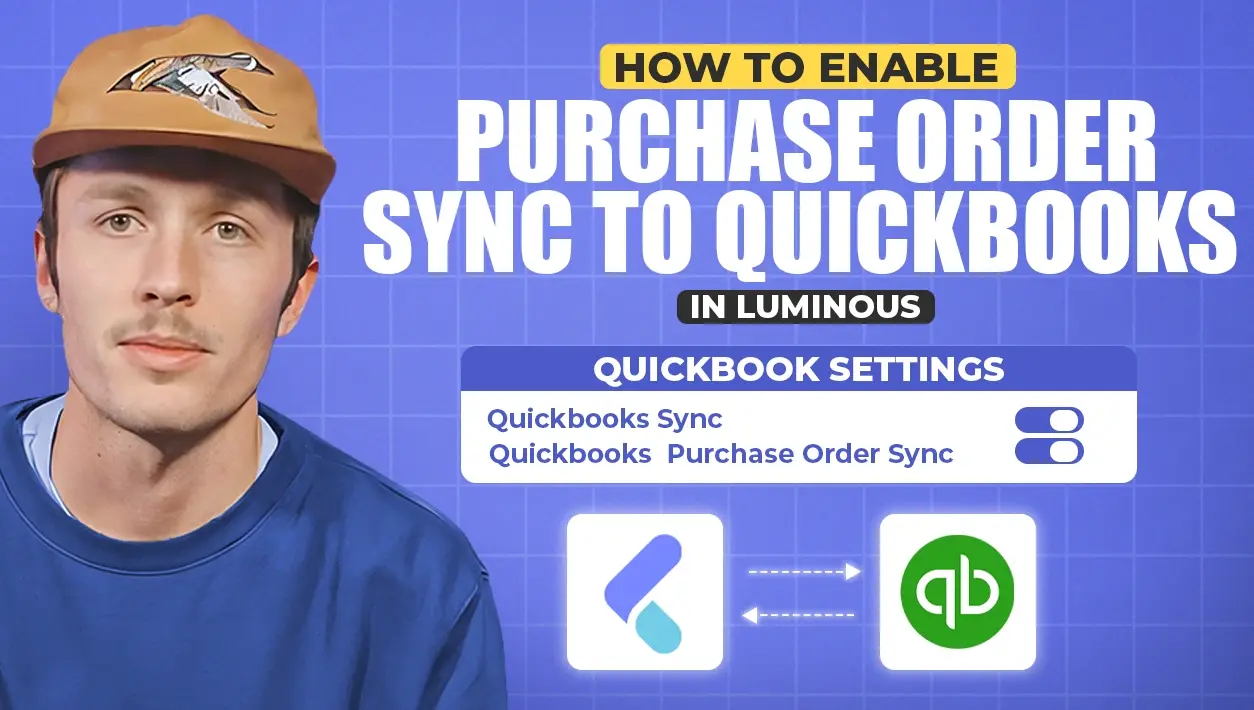


- Step 1: Access System Settings
- Step 2: Enable QuickBooks Sync
- Step 3: Turn on Purchase Order Sync
- Step 4: Automatically Sync POs to QuickBooks
- Key Takeaways
- Before and After Turning On PO Sync
- Why Write POs in Luminous?
- Before You Turn It On: Checklist
- Tips for a Clean PO Sync
- Common Questions
If your team has been writing purchase orders (POs) in QuickBooks and you want to avoid entering them twice, in both QuickBooks and Luminous, you can enable Purchase Order Sync. This feature ensures that any PO created in Luminous is automatically pushed to QuickBooks.
Follow these steps to turn on Purchase Order Sync:
Step 1: Access System Settings
- In Luminous, navigate to the bottom left corner of your screen.
- Click on your name to open the settings menu.
- Select System Settings.
Step 2: Enable QuickBooks Sync
- In System Settings, locate the QuickBooks Settings section.
- Click on QuickBooks Settings to open synchronization options.
- Toggle QuickBooks Sync to ON (this must be enabled before syncing POs).
Step 3: Turn on Purchase Order Sync
- In the QuickBooks Settings menu, find the option for QuickBooks Purchase Order Sync.
- Toggle QuickBooks Purchase Order Sync to ON.
Step 4: Automatically Sync POs to QuickBooks
- Once enabled, any new purchase orders created in Luminous will automatically push to QuickBooks.
- This eliminates the need for manual entry in both systems.
Key Takeaways
- Purchase Order Sync pushes POs from Luminous to QuickBooks, so you only write each PO once.
- Both toggles live in System Settings > QuickBooks Settings.
- QuickBooks Sync must be on first. QuickBooks Purchase Order Sync is the second toggle that turns on the PO push.
- After it's on, POs you write in Luminous push to QuickBooks automatically.
Before and After Turning On PO Sync
Before: a buyer writes a PO in Luminous to track incoming inventory, then someone re-types the same PO in QuickBooks so accounting can see what's owed. Every PO is entered twice, and any change has to be made in both places. It's easy for quantities, costs or vendors to drift apart.
After: the buyer writes the PO once in Luminous. It pushes to QuickBooks automatically, so operations and accounting see the same PO without anyone re-entering it. Your team saves time on every order, and your books stay closer to what's actually on order.
Why Write POs in Luminous?
QuickBooks is built for accounting, but it doesn't see the operational picture behind each purchase. Luminous does. When POs start in Luminous, they're tied to your inventory: you can see stock on hand, what's already on order and what's selling, so buyers can decide what to reorder and how much before the PO is written.
Once the goods arrive, receiving against the PO in Luminous updates inventory and landed costs. With PO Sync on, accounting still gets every PO in QuickBooks, without your purchasing team having to work in two systems. Operations works where the inventory data lives, and finance works where the books live.
Before You Turn It On: Checklist
- Your QuickBooks account is connected to Luminous. If it isn't yet, see How to Connect Your QuickBooks Account to Luminous.
- Your account mappings (asset, expense, income and AP accounts) are set in QuickBooks Settings.
- Your vendors and products are set up consistently in Luminous, so the POs that push over are clean.
- Your team knows to write new POs in Luminous going forward, not directly in QuickBooks, to avoid duplicates.
Tips for a Clean PO Sync
- Pick a start date. Agree on the day your team switches to writing POs in Luminous, so nothing is entered in both systems during the changeover.
- Match vendor names. Using the same vendor names in Luminous and QuickBooks makes synced POs easy to find and reconcile.
- Spot-check the first few. After turning sync on, open the first few POs in QuickBooks to confirm vendors, items and totals came across as expected.
- Keep one owner. Have one person on the finance side responsible for reviewing synced POs, so questions get answered quickly.
Common Questions
Do I still need to enter POs in QuickBooks? No. Once Purchase Order Sync is on, the POs you write in Luminous push to QuickBooks automatically.
Why aren't my POs showing up in QuickBooks? Check that both QuickBooks Sync and QuickBooks Purchase Order Sync are turned on, and that your QuickBooks connection is active. If the connection has lapsed, renew your QuickBooks tokens from the QuickBooks channel.
Does this push invoices too? Invoices are handled by the main QuickBooks Sync setting. See How to Connect Your QuickBooks Account to Luminous and How to Sync Purchase Orders from Luminous to QuickBooks Online.
By enabling Purchase Order Sync, you streamline your workflow, reduce errors, and ensure consistency between Luminous and QuickBooks.
Video transcript
Why turn on Purchase Order Sync
Hey guys, this is going to be a quick tutorial about how to turn on Purchase Order Sync to QuickBooks. This is mostly used if you've been writing purchase orders in QuickBooks and you don't want to do dual entry in both Luminous and QuickBooks.
Open QuickBooks Settings
To enable this, go down to the bottom left, click your name, and click System Settings. In System Settings, there's a button called QuickBooks Settings.
Turn on the two toggles
This is where you turn on QuickBooks Sync, which needs to be done first. Then, to enable the purchase order push, turn on QuickBooks Purchase Order Sync. When you begin writing purchase orders in Luminous, they'll push over to QuickBooks automatically. Thanks.